For most DIY PC builders, the best choice is a good tower air cooler.
It is usually cheaper than an AIO, easier to install, and has fewer parts that can fail. If your CPU is used mainly for gaming, browsing, and normal productivity, a properly sized air cooler is often all you need.
An AIO makes more sense when the CPU runs at high power for long periods, such as during rendering, compiling, or heavy all-core workloads. Low-profile and passive coolers are mainly for small or specialized builds.
So don’t start by asking which cooler is the most powerful. Start with four things: how much heat your CPU actually produces, how much space your case has, how much noise you can tolerate, and how much you want to spend.
The Short Answer: What “Best” Means for a PC Heat Sink
Best for Most Builders
For most standard desktop PCs, a mid-size or large tower air cooler is the safest starting point.
It can handle the heat from many modern CPUs without adding a pump, radiator, or tubing. Maintenance is simple. If a fan eventually fails, you can usually replace the fan instead of replacing the entire cooler.
That combination of performance, cost, and simplicity is why tower coolers work well for most DIY builds.
When Air Is Not Enough
Air cooling becomes harder to manage when a CPU pulls high power continuously.
A short gaming load is one thing. A CPU running all cores at high power for two hours of rendering is another.
In those situations, a 240 mm, 280 mm, or 360 mm AIO may provide more cooling capacity by moving heat to a larger radiator.
What This Guide Will Not Cover
This guide is for DIY desktop PC builders.
It does not rank every cooler model on the market, and it does not cover custom industrial heat sinks or B2B cooling design. The goal is to help you choose the right cooler type and size before comparing individual products.
There is no universal best cooler. There is only the best match for your PC.
Start With Your Real Constraints, Not the Cooler
Before comparing cooler names, treat these four items as pass/fail constraints. If one fails, the cooler is not a candidate—even if its reviews are excellent.
- Heat load: Check your CPU’s real power draw in the workloads you actually run, not just the box TDP.
- Space: Confirm case cooler height or radiator support, plus RAM and GPU clearance.
- Noise: Decide whether the PC sits under a desk or next to your microphone.
- Budget and lifespan: Compare total cost and the number of moving parts you are willing to maintain.
The sections below explain how to check each constraint.
CPU Actual Heat Load vs TDP
Do not choose a cooler based only on the TDP printed on the CPU specification page.
Modern processors can draw very different amounts of power depending on the motherboard, BIOS settings, and workload. A CPU that looks easy to cool during gaming may consume much more power during a long all-core workload.
Before buying a cooler, check independent power measurements for your exact CPU. Look at the type of workload you actually run.
If your PC spends most of its time gaming, use gaming power data. If you render videos for hours, pay more attention to sustained all-core power.
Case Clearance and RAM Height
A cooler can have excellent benchmark results and still be useless if it does not fit inside your case.
Check the maximum CPU cooler height supported by the case. Then check the cooler’s RAM clearance.
This matters with large dual-tower coolers. The front fan may sit directly above the memory slots. If you use tall RGB RAM, you may have to raise the fan.
That can make the entire cooler too tall for the case.
Noise Tolerance
Think about where your PC sits.
A gaming tower under a desk can be louder than a workstation sitting next to your monitor. If you record audio or work in a quiet room, fan noise becomes much more important.
A larger heat sink can often remove the same amount of heat with slower fan speeds. A smaller cooler may need to spin its fan much faster.
Budget and Lifespan
Price is not the only cost.
A tower cooler usually has one main moving part: the fan. If the fan wears out, replacing it is relatively simple.
An AIO adds a pump, radiator, and sealed liquid loop. It can offer more cooling capacity, but there are more components involved.
For many builders, a good air cooler can remain useful through several CPU upgrades.
The 4-Question Decision Funnel
You can narrow down most PC cooling options by answering four questions.
Q1: Air or AIO?
Choose air cooling if you want a simple, reliable solution with good long-term value.
Consider an AIO if your CPU runs at high sustained power, you overclock heavily, or your case has strong radiator support.
Q2: Tower, Low-Profile, or Passive?
For a normal desktop case, choose a tower cooler.
For a compact case with limited height, choose a low-profile design.
Passive cooling is mainly for low-power systems or carefully planned silent builds with enough case ventilation.
Q3: Which Size Class?
Match the cooler to both your CPU and your case.
A small cooler may technically control the CPU temperature, but the fan may need to run near maximum speed. A larger cooler gives you more thermal headroom and can often run more quietly.
Q4: Do You Pay for Silence or Looks?
Some buyers want the lowest possible noise. Others want RGB lighting, a display, white components, or a clean AIO layout.
Those preferences are valid, but they should come after cooling capacity and physical compatibility.
Material & Design: What Actually Moves Heat
A PC cooler—essentially a heat sink plus a fan—has one job: move heat away from the CPU and release it into the air.
The materials and internal structure affect how efficiently that happens.
Copper vs Aluminum: Thermal Conductivity
| Material | Approximate Thermal Conductivity | Common Use in PC Coolers |
|---|---|---|
| Copper | About 400 W/m·K | Cold plates, heatpipes, heat-spreading areas |
| Aluminum | About 200–240 W/m·K | Cooling fins and lightweight heat sink structures |
Copper heat sinks transfer heat faster than aluminum. That does not mean an all-copper cooler is automatically better.
Copper is heavier and more expensive. Aluminum is lighter and works well for large fin stacks.
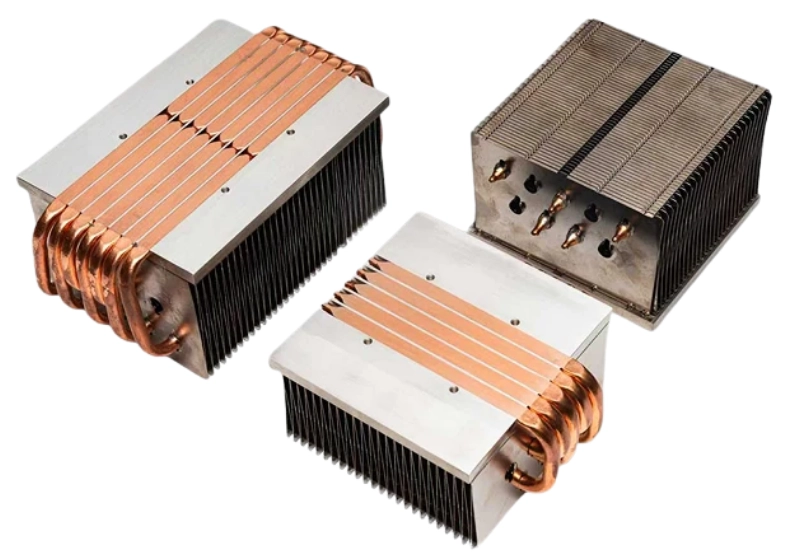
That is why many effective PC coolers use copper where heat enters the cooler and aluminum where the heat is released into the air.
Heatpipes and Vapor Chambers
Heatpipes move heat from the CPU contact area into the fin stack.
They allow a relatively small contact area to distribute heat across a much larger cooling surface.
Vapor chambers perform a similar job across a wider area. They are often used where heat needs to spread quickly through a compact design.
Neither technology guarantees better cooling by itself. The entire cooler design—including its thermal resistance—still matters.
Fin Area, Spacing, and Surface Roughness
The fins are where heat leaves the cooler.
More fin area usually means more surface available to transfer heat into the air. But fin spacing matters too.
Tightly packed fins can increase surface area but may need stronger airflow. Wider fin spacing can work better with slower fans.
On the contact side, surface roughness and flatness also matter. Microscopic peaks and valleys can trap air or force a thicker thermal paste layer. A flat, well-machined contact surface is useful, but a marketing “microinch” number matters less than even mounting pressure and good paste coverage.
The goal is not simply to have more metal. The heat sink and fan need to work together.
Direct-Touch vs Cold Plate
Some air coolers place heatpipes directly against the CPU heat spreader. Others use a solid metal cold plate between the CPU and the heatpipes.
Direct-touch designs can reduce material between the CPU and heatpipes. A cold plate can provide a more continuous contact surface.
In practice, mounting pressure, contact quality, heatpipe placement, and overall design matter more than choosing one approach by name alone.
Thermal Paste Is Part of the Cooling System
Thermal paste fills tiny gaps between the CPU and cooler.
Without it, microscopic air gaps reduce heat transfer.
You do not need to obsess over tiny differences between premium thermal pastes. Proper mounting and even contact usually have a bigger effect on real-world results.
Air vs AIO vs Passive: Honest Trade-offs
Air Cooling
Air cooling is simple.
A tower cooler uses a metal heat sink and one or more fans. There is no pump and no radiator to mount.
For many gaming and productivity PCs, a good tower cooler provides enough cooling with lower cost and less complexity.
240–360 mm AIO Cooling
An AIO moves CPU heat to a radiator mounted elsewhere in the case.
A larger radiator can provide more cooling surface, which helps during sustained high-power workloads.
However, an AIO also introduces pump noise, radiator placement issues, tubing, and another component that can eventually fail.
Passive and Low-Noise Cooling
Passive cooling removes the dedicated CPU fan.
That sounds simple, but the system still needs a way to remove heat from the case. A fanless cooler inside a poorly ventilated case can quickly run into thermal limits.
For many quiet PCs, a large air cooler with slow-moving fans is more practical than a completely fanless system.
What Hybrid Really Means
Hybrid cooling can mean different things depending on the product.
It usually combines liquid cooling for one component with fans or air cooling for surrounding hardware.
For a normal DIY CPU build, the main choice is still straightforward: air, AIO, or a specialized compact cooling solution.
Match the Cooler to Your Use Case
Budget Gaming
Tier/type: a 4–6 heatpipe single-tower 120 mm class air cooler; choose low-profile only if the case forces it.
Start with your CPU’s actual gaming power draw.
You do not need an oversized liquid cooler simply because you are building a gaming PC. A capable tower air cooler is often enough.
Check socket support, case height, and expected fan noise. Spend the rest of your budget where it makes a bigger difference.
Mid-Range Silence
Tier/type: a large single-tower or compact dual-tower cooler with 120/140 mm slow-spinning fans.
If you want a quieter PC, a larger tower cooler is often the first upgrade to consider.
More heat sink surface gives the cooler more room to work. That can allow the fans to run at lower speeds during everyday use.
Pair the cooler with a sensible fan curve. There is little benefit in making the fans jump to maximum speed every time the CPU briefly spikes.
High-End Gaming and Overclocking
Tier/type: a large dual-tower air cooler or a 280/360 mm AIO; use 240 mm mainly when case space limits you.
High-end CPUs can generate much more heat under sustained load.
A large dual-tower air cooler may still be enough, especially for gaming-focused systems. But if you regularly run high all-core loads or overclock, a 240 mm to 360 mm AIO may provide additional thermal headroom.
Small Form Factor
Tier/type: a low-profile down-draft cooler or a case-supported 120–240 mm AIO; passive only with a low-power CPU and strong case ventilation.
In a small-form-factor PC, the case often makes the decision for you.
Check CPU cooler height, radiator support, GPU thickness, and airflow before buying anything.
A low-profile cooler may fit perfectly and still run hot if the case has limited fresh-air intake.
Workstation and Long Renders
Tier/type: a dual-tower air cooler or 280/360 mm AIO with reviewed sustained-load performance; prioritize steady-state results and fan curves over short benchmark peaks.
For long renders and other sustained workloads, focus on continuous performance.
A cooler that handles a five-minute benchmark may behave differently after an hour of full CPU load.
Choose enough cooling capacity for the way the system will actually be used.
Compatibility & Installation: The Hidden Failure Points
Socket Support
Confirm that the cooler supports your exact CPU socket and includes the required mounting hardware.
Do not assume an older cooler automatically supports a newer socket without checking.
RAM and GPU Clearance
Large tower coolers can block tall memory modules.
In compact cases, radiators can also interfere with long GPUs or motherboard components.
Use manufacturer clearance drawings instead of estimating from product photos.
Case Airflow
A CPU cooler needs fresh air.
If hot air stays inside the case, the cooler will keep pulling in warmer air and temperatures will rise.
Make sure cool air can enter the case and hot air has a clear path out.
Mounting Pressure
Even pressure between the CPU and cooler matters.
Follow the mounting instructions and tighten screws gradually when the mounting system uses multiple screws. Uneven contact can reduce heat transfer.
Orientation and Cable Routing
For air coolers, align airflow with the case’s overall intake and exhaust pattern.
For AIO systems, route tubes without sharp bends or unnecessary pressure on fittings.
Plan fan and pump cables before closing the case. It makes future maintenance much easier.
Noise, Thermals, and What to Measure After Buying
Normal Temperature Ranges
There is no single normal CPU temperature for every processor. Different CPUs have different power limits, boost behavior, and thermal targets.
Use a logging tool such as HWiNFO64 to record CPU package temperature, core clocks, and fan speed during two runs: 20–30 minutes of your normal gaming or productivity workload, and 20–30 minutes of an all-core stress test. Compare the steady-state package temperature and sustained clock speed with independent reviews of the same CPU. Distinguish short boost spikes from sustained temperatures.
Many modern desktop CPUs are designed to run in the 80s–90s °C under sustained all-core stress while still holding clocks. What matters is whether the CPU throttles, drops clocks below reviewed sustained values, or forces fans to maximum. If it hits the thermal limit quickly or cannot hold expected clocks, check mounting pressure, paste coverage, and case airflow before buying a new cooler.
Fan Curve
A good fan curve can make a noticeable difference in everyday use.
Avoid settings that send the fan immediately to maximum speed because of a brief temperature spike.
A smoother curve can keep the PC quieter while still increasing cooling during sustained workloads.
Stress Testing
After installing the cooler, test the system under a heavy workload.
Watch CPU temperature, clock behavior, and fan speed. The goal is to confirm that the cooler is mounted correctly and that the system remains stable.
When to Repaste or Undervolt
If temperatures gradually increase over time, first check for dust and fan problems.
If those are not the cause, replacing old thermal paste may help.
Undervolting can also reduce CPU heat output on supported systems. When configured correctly, it may lower temperatures without causing a noticeable performance loss.
Common Bad Recommendations and How to Avoid Them
“Copper Is Always Better”
Copper transfers heat well, but a cooler is more than its material.
Heatpipe layout, fin area, airflow, and mounting design can have a larger effect on the final result.
“More Heatpipes Are Always Better”
More heatpipes do not automatically mean better cooling.
Heatpipe diameter, placement, contact area, and fin design all affect performance.
“An AIO Is Always Cooler”
A large AIO can provide excellent cooling, but a strong tower air cooler can perform very well in the same CPU class.
Choose based on your workload and case—not because liquid cooling looks more powerful.
“The TDP Label Is Enough”
It is not.
Check actual CPU power draw, workload duration, and motherboard settings before choosing a cooler.
“A Bigger Cooler Is Always Better”
A larger cooler can give more thermal headroom and lower noise, but only if it fits and matches your workload.
An oversized cooler can block RAM, stress the motherboard, or cost money that would be better spent elsewhere. Match size to CPU heat load and case clearance first.
Quick Buying Checklist
- Check your CPU’s real power draw.
- Confirm socket and mounting compatibility.
- Check maximum cooler height or radiator support.
- Verify RAM and GPU clearance.
- Choose between air, AIO, low-profile, or passive cooling.
- Consider how long your heavy workloads last.
- Decide how much fan noise you can tolerate.
- Plan case airflow before installation.
- Compare complete thermal and noise results—not just marketing specifications.
FAQ: Long-Tail Questions
What Is the Best Budget Cooler Type?
For most budget PCs, a basic tower air cooler offers the best balance of cooling, noise, price, and long-term simplicity.
Is the Stock Cooler Enough?
It can be enough for moderate workloads. However, an aftermarket tower cooler can often reduce both temperature and fan noise.
How Many Heatpipes Do I Need?
There is no perfect number. Compare the complete cooler design and independent test results instead of choosing based on heatpipe count alone.
Do I Need an AIO for an Intel Core i7 or AMD Ryzen 7?
Not automatically.
The answer depends on the specific CPU, motherboard settings, workload, and case. Many systems in these classes work well with a strong tower air cooler, while sustained high-power workloads may benefit from a larger AIO.
What Is the Best SSD Heat Sink?
The right SSD heat sink depends on the drive and motherboard layout. Many motherboards already include an M.2 thermal solution.
SSD cooling should be treated as a separate decision from CPU cooling.
How Much Does Noise Matter When Choosing a Cooler?
That depends on where and how you use your PC.
If the system sits under a desk, moderate fan noise may not matter much. If it sits next to you during recording or quiet office work, a larger cooler that can run slower may be worth the extra cost.
Final Verdict
For most DIY PC builders, a good tower air cooler is the best starting point.
Choose an AIO when your CPU runs at high sustained power, when you need extra thermal headroom, or when your case layout makes radiator cooling practical.
Choose a low-profile or passive solution when space and noise requirements leave you with fewer options.
Start with your CPU’s real heat load. Check the space inside your case. Decide how much noise you can tolerate.
Then choose the cooler.
That is a much more reliable approach than simply buying the biggest, most expensive, or most heavily advertised option.